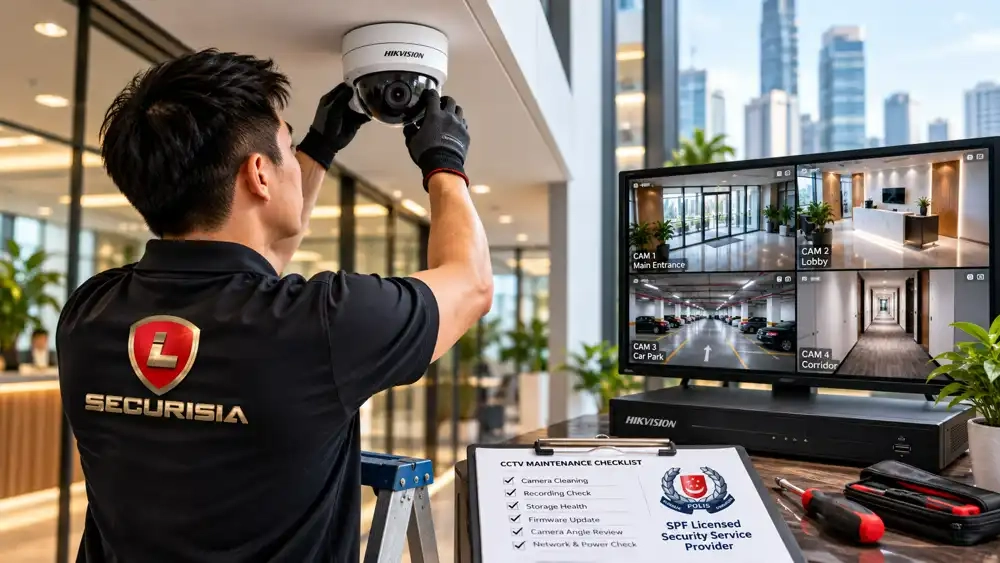
1. Check that your CCTV is actually recording
A camera can appear online while the recorder is not saving usable footage. Check playback regularly instead of relying only on the live view. Select several cameras and review recordings from recent hours or days to confirm that the expected footage is available.
- Check that each important camera has recent playback.
- Confirm recording schedules match the intended 24/7 or event-based setup.
- Look for unexplained gaps, error messages or repeated recorder alerts.
- Verify that the date and time are correct so incident footage can be located accurately.
A weekly playback spot-check is a useful starting point. Businesses that depend on CCTV for security or incident reviews should establish a documented checking routine appropriate to the site.
2. Check recorder and storage health
The NVR or DVR and its hard drive are essential parts of the system. Review the recorder's storage status and any available disk-health warnings. A drive reporting an error, unusual noise or missing recordings should not be ignored.
Also check whether the configured retention period is still suitable. The number of cameras, resolution, frame rate, recording mode and available storage all affect how long footage is retained. Do not assume that the system will keep a full month of recordings unless playback confirms it.
3. Keep camera lenses and housings clean
Dust, water marks, cobwebs and fingerprints can reduce image clarity. Where a camera is safely accessible, clean its exterior gently using a suitable soft cloth and follow the manufacturer's care instructions.
- Avoid abrasive materials and harsh cleaning chemicals on the lens.
- Do not open weather-sealed camera housings unless qualified to do so.
- Check accessible mounts and visible cable entries for looseness or damage.
- For cameras installed at height, use suitable access equipment and trained personnel.
4. Review the camera view and night image quality
Changes to furniture, shelving, displays, lighting or site layout can create new blind spots. Review each camera's view against its security purpose, particularly entrances, payment counters, loading areas and other important locations.
Check recordings from both daytime and night-time conditions. Reflections, backlighting, glare, overexposure or insufficient light can make footage less useful. Adjustments may require repositioning, lighting changes or professional configuration.
5. Update firmware carefully
Manufacturers may release firmware updates to address vulnerabilities, fix bugs or improve compatibility. Use official manufacturer sources and check that the update applies to the exact model and hardware revision.
- Read the release notes and installation instructions first.
- Back up relevant configuration settings where the equipment supports it.
- Make sure power and connectivity are stable during the update.
- After updating, test live view, playback, recording schedules and remote access.
Avoid installing firmware from unverified websites or interrupting an update in progress. If the equipment is business-critical or the procedure is unfamiliar, arrange for a qualified technician to handle it.
6. Review remote viewing and account security
Check that authorised users can access the system and that former staff no longer have access where their permissions should have been removed. Use strong, unique passwords and enable multi-factor authentication when supported.
Keep recorder and camera software current, review user permissions periodically, and avoid exposing device management interfaces directly to the internet without a properly assessed security configuration. Remote access should be both usable and appropriately protected.
7. Check network, power and visible cabling
Intermittent network connections, damaged cables, unstable power and loose connectors can cause cameras to disconnect or recordings to drop. Review recorder alerts and visible equipment for signs of damage or unusual behaviour.
Do not open powered equipment or carry out electrical work unless qualified. If several cameras fail at once, a shared network, switch or power issue may be involved rather than separate camera faults.
8. Know when to call a CCTV maintenance professional
Arrange professional troubleshooting if cameras repeatedly go offline, recordings are missing, the recorder reports storage errors, image quality suddenly changes, or remote viewing stops working after basic checks. Prompt assessment may help identify the cause before more footage is lost.
For commercial premises, a planned maintenance routine can help keep checks consistent. The scope and frequency should reflect the system's size, operating environment, importance to security and any support arrangements already in place.
Lion Securisia Engineering provides CCTV servicing and technical support in Singapore. Contact our team with your system type, number of cameras and the issue you are experiencing so we can discuss the appropriate next step.
Frequently asked questions
How often should I check my CCTV recordings?
A brief playback spot-check each week is a useful starting point. For business-critical systems, set a regular documented check schedule that reflects the site's security needs and recording requirements.
Can I clean CCTV cameras myself?
You can gently clean accessible camera surfaces and lenses using suitable materials and the manufacturer's instructions. Avoid abrasive chemicals, opening sealed housings or working at height without suitable equipment.
Does a CCTV system need firmware updates?
Firmware updates may address security vulnerabilities, bugs and compatibility issues. Check the manufacturer's release notes and exact model compatibility, back up relevant settings where possible, and follow the approved update procedure.
When should I call a CCTV maintenance professional?
Seek professional help if cameras repeatedly go offline, playback is missing, the recorder reports storage errors, image quality suddenly changes, or you are unsure how to update or secure the equipment.